Kakobuy Mobile Shoe Image Checking Workflow
Kakobuy Mobile Shoe Image Checking Workflow
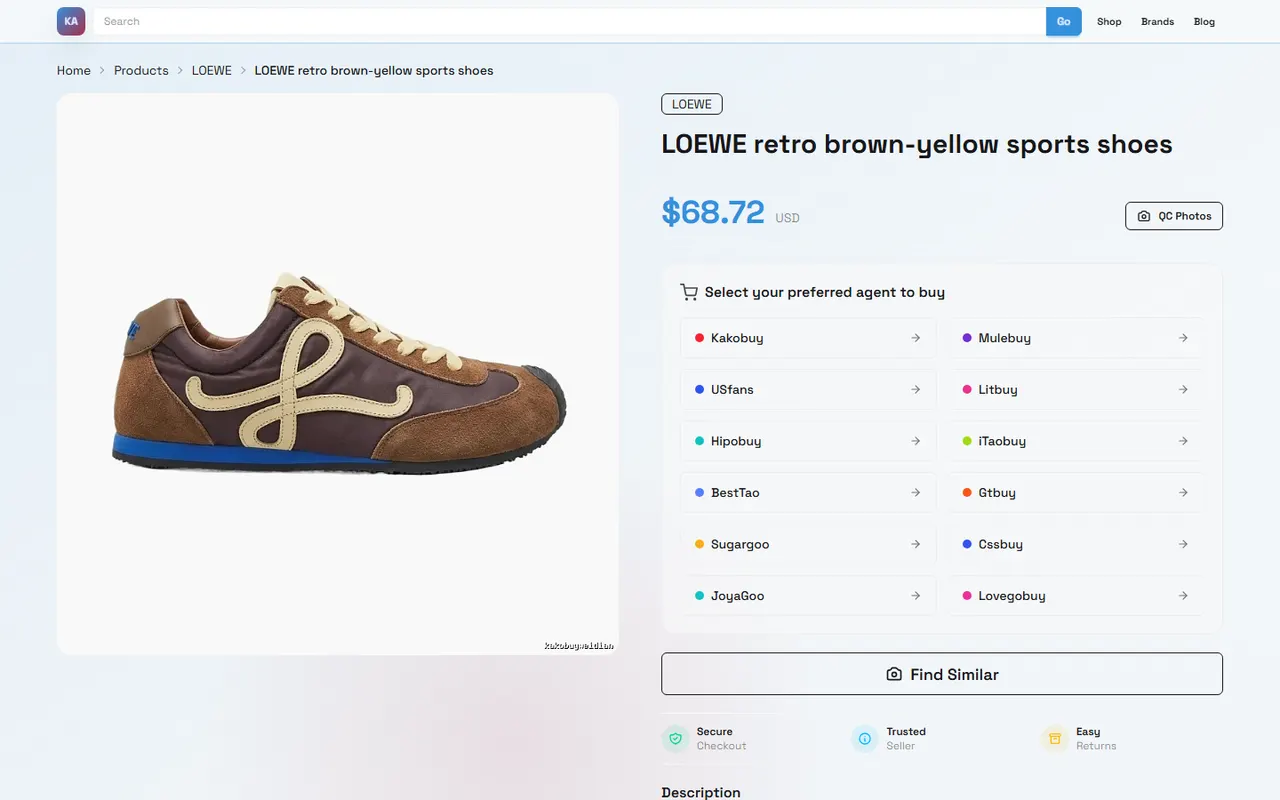
This article is for buyers who need to check shoe product images on mobile. It focuses on one specific task: comparing images item by item from Kakobuy product cards, a website-style spreadsheet, or Google Sheets, and keeping clear records before deciding to continue with a purchase, request further verification, or hold off.
This article is not a substitute for physical warehouse inspection, and you cannot confirm authenticity, comfort, actual materials, or final sizing based only on product display images. The service information mentioned here is based on Kakobuy materials compiled on September 28, 2026. Actual pages, product status, fees, and available routes should be based on what is shown before you place an order. 📱
What image-checking task does this mobile comparison solve?
The goal of mobile checking is not to save all images, but to determine whether each candidate shoe has enough evidence to proceed. Before starting, clarify three outcomes:
Confirm whether images belong to the same product, same color, and same style.
Record what has been seen in the upper, sole, shoebox, and size information.
Separately mark evidence that is missing, blurry, insufficient angle, or contradictory.
If the page only has one distant image, or the images clearly do not match the product title or color option, do not fill in information from experience. Mark it as "insufficient evidence" first, then decide whether to wait for more images or ask platform customer service.
Kakobuy's positioning is Chinese product purchasing, warehousing, quality inspection, and international shipping services. Its materials show that inspection mainly checks appearance information such as style, quantity, color, size, and model. For shoes, you should still rely on actually visible images and order records; do not write a conclusion as if you have received the physical item based only on observing display images.
How to view shoe images and product cards in Kakobuy's website-style spreadsheet
First open the product record or spreadsheet page in your mobile browser, then view in a fixed order to avoid confusion from jumping between multiple candidates.
Step one, confirm product identity. Record product name, color, size options, model in seller description, and the row or product card position of the image. If there are multiple colors or sellers in the same sheet, you must create separate records for each candidate.
Step two, check whether images are complete. Prioritize checking whether there are front, side, sole, shoebox, or label images. When there is only a main product image without detail images, do not write "no problem" for "not shown".
Step three, compare against product card text. Focus on whether the upper color, sole color, lace, logo position, and shoebox label in images match the options in the product card. If multiple shoes appear in images, confirm whether they belong to the same product, and do not mistake display combinations for sales content.
Step four, keep original image information. Do not crop out shoebox labels, size marks, or sole areas that may affect judgment. If the mobile page cannot zoom in, record "original page cannot be viewed clearly" and do not guess from small images.
It is recommended to keep the following fields for each candidate shoe in the sheet:
Product or candidate ID
Product name and color
Selected size
Number of images
Image parts already seen
Items consistent or inconsistent with product card
Evidence still needed
Current decision
Shoe image checking can only help organize appearance evidence; it cannot confirm wearing comfort, sole durability, actual leather grade, or long-term quality. 👟
How to save image links and pending notes in Google Sheets
Google Sheets is better for keeping trackable checking records. Each row should correspond to one candidate product or one specific color; do not mix multiple styles in the same row.
Image links can be saved as plain text, or you can put clickable image URLs in cells. For easier mobile viewing, keep both an "Image URL" and "Image Observation" column: the former for going back to the original image, the latter for writing only facts you have seen.
Notes can follow a fixed format, for example:
Checked: upper color matches product card.
Not checked: sole image missing.
Need more: shoebox label cannot be zoomed in.
Hold: logo position in image inconsistent with other candidate images.
Do not write conclusions like "authentic", "good quality", or "will fit" that cannot be directly proven by images. Safer wording is "image does not show obvious damage" or "current image insufficient to judge material".
To avoid overwriting content when multiple people or devices edit, add "Last checked time" and "Check status" columns. Status should use only a few fixed values: pending check, insufficient images, information inconsistent, can continue checking, hold.
If images come from a product page, keep the product identity information from the original page; if they are physical photos provided by the warehouse, record the photo batch or order ID separately. Do not mix product display images, warehouse inspection photos, and user-saved images as the same evidence. 🧾
How to coordinate zoom, horizontal scrolling, and going back on mobile
The most error-prone parts of mobile checking are losing page state and misaligning columns in horizontal sheets. Use a rhythm of "check one item, record one item, then go back".
When viewing images, you can first pinch-zoom on key areas like upper logo, sole pattern, shoebox label, then zoom back out to confirm which shoe these details belong to. After zooming, do not jump to conclusions based on local color because screen brightness and image compression can change perception.
When scrolling a spreadsheet horizontally, first confirm the product ID in the current row, then move to the image link or notes column. After scrolling back left, confirm the product ID again to avoid writing notes from the next row into the current product.
If the browser back action reloads the page, copy the current row ID and status first, then go back to the product card. For candidates with many images, check in a fixed order: front, side, sole, shoebox, label, and use the same order in notes.
When images open in a new tab, confirm the original sheet still keeps the current scroll position before going back. If the page returns to top, do not edit immediately; first relocate to the product ID.
A simple mobile-friendly workflow is:
Lock product ID and color.
Open the first image, record confirmable facts.
Go back to the sheet, save notes.
Open the next image, continue same product.
After finishing, fill in overall status.
What observations should be recorded separately for upper, sole, and shoebox images?
Different images provide different evidence; do not let one image bear all judgments. You can record as follows:
Image part | Observable items to record | Conclusions not to draw directly |
|---|---|---|
Upper and side | Color, material appearance, whether stitching is visible, logo position, presence of laces and decorations | Actual material grade, wearing comfort, authenticity |
Sole | Sole color, pattern completeness, whether both left and right shoes shown, obvious stains or deformation | Wear life, grip, actual hardness |
Shoebox and label | Size, color, model, whether label is clear, whether box is damaged | Shoebox label definitely corresponds to correct product, condition unchanged after shipping |
Use neutral descriptions when recording. For example, "a dark area is visible on the left shoe side image, cannot confirm whether shadow or stain" is easier to recheck than "upper has a defect".
If you can only see one shoe, do not infer the other shoe is the same. If the sole only shows part, do not write "sole complete". If the shoebox label is blurry, list it as evidence to be supplemented, not fill in the model based on product title. 🔎
How to handle item-by-item comparison of multiple candidate images in two carriers
Kakobuy's website-style spreadsheet is better for quickly browsing product cards and image collections, while Google Sheets is better for unified fields, filtering status, and keeping follow-up records. They can be used together, but designate one as the final record location to avoid different conclusions on both sides.
When handling multiple candidate shoes, group by product ID first, then subdivide by color and size. Do not rely only on image file names because they may be duplicated, abbreviated, or missing color information.
Item-by-item comparison can follow this order:
First compare product name and candidate ID.
Then compare color and style details.
Then check whether upper, sole, and shoebox images belong to the same candidate.
Finally write inconsistent items into Google Sheets pending notes.
If multiple candidates use similar images, treat "same image" as something needing further confirmation, not as proof the products are the same. Duplicate images may come from same style, or just sellers using generic display images.
When website page and Google Sheets records conflict, keep both original information and set status to "information inconsistent". Do not overwrite original records before confirming source, time, and product identity.
How to mark evidence gaps when images are missing, blurry, or inconsistent
Image problems should be distinguished by cause, otherwise you cannot judge later whether supplementary material is needed.
Missing image: page does not show required part, e.g., only upper, no sole or shoebox.
Blurry image: image exists but cannot confirm color, label, logo, or local condition.
Inconsistent images: colors, sole, logo, size, or shoebox information in different images cannot correspond to each other.
Unknown image source: cannot confirm which product, color, or order the image belongs to.
Add an "impact on decision" field in notes to explain whether the gap affects next steps. For example, missing shoebox label may affect model checking, missing sole image may affect appearance check, but you cannot infer sole quality from that.
For issues needing further confirmation from platform or warehouse, make specific requests, e.g., "please supplement left and right shoe side and sole images, and make sure size label is visible", not just "please send more images".
Kakobuy materials show that some products may be subject to no-unboxing inspection rules, especially those with seal labels. For such products, the image checking scope may be limited by packaging condition; record "cannot observe due to unopened package" as a condition limitation, not as evidence the product is normal. ⚠️
Hold or continue checklist after completing image checking
After finishing records, do not decide based on "whether images look good", but on whether evidence is sufficient.
Cases where you can continue:
Product ID, color, and size are clear.
Main images can correspond to the same candidate product.
Facts observable in upper, sole, and shoebox have been recorded.
Remaining gaps do not affect basic product identification.
Any inconsistencies are separately noted.
Cases where you should hold:
Images cannot confirm product identity or color.
Key labels are blurry and cannot be cross-confirmed by other images.
Upper, sole, or shoebox information in different images contradict each other.
Only one shoe is shown, but you need to judge the whole pair.
There are unexplained conflicts between product page, sheet, and image records.
Image checking can only reduce the risk of missing information; it cannot eliminate purchase, shipping, tax, or after-sales risks. Kakobuy's fee information shows that total purchasing cost usually consists of product cost, domestic China shipping, international shipping, and possible customs fees; international shipping is also affected by weight, route, and destination. Actual costs should be based on the checkout page; do not assume total cost is fixed just because image checking is done.
Consolidation also should not be decided solely on image checking results. Consolidation may reduce repeated first weight or operation costs, but may also increase volumetric weight, parcel value, or single loss risk; splitting may increase fixed costs but may suit route restrictions or reduce single risk. Final decision should be based on product quantity, weight, destination country rules, and checkout quote.
If you continue with purchase, keep checking records in Spreadsheet or Google Sheets, especially insufficient images and inconsistent items. If you hold, keep original image URLs, gap reasons, and questions to be supplemented to avoid starting from scratch next time.
This method is suitable for people who need to organize multiple shoe candidates on mobile, prepare warehouse inspection requests, or reduce information confusion before ordering. It is not recommended for proving brand authenticity, guaranteeing fit, predicting durability, or replacing destination country tax, import restrictions, and after-sales policy checking.
Browse our latest products and find your next favorite item.